
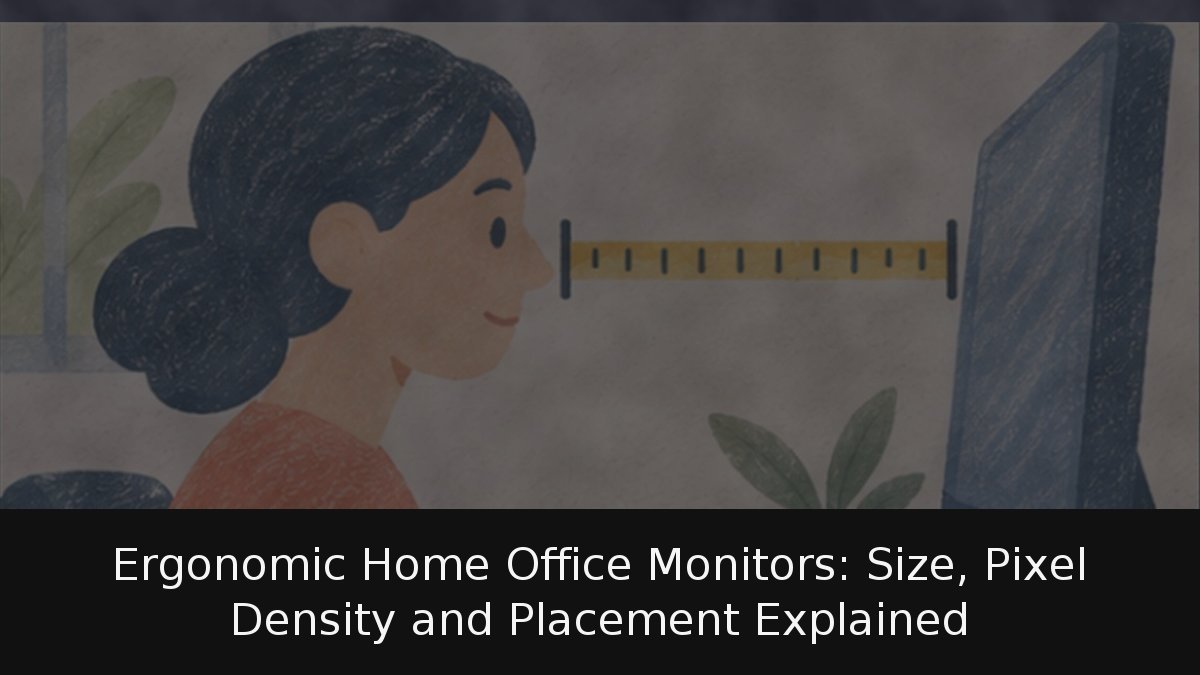
For anyone who spends long hours working or studying on a laptop, adding an external monitor is one of the most effective upgrades available. But the decision is not simply about buying the biggest screen. Viewing distance, pixel density, height and connectivity all determine whether the setup actually protects your eyes and neck. Spain’s National Institute for Safety and Health at Work (INSST) recommends placing an office screen between 40 and 75 cm from the eyes, with the top edge level with your line of sight. At that distance, pixel density decides whether text looks crisp: a 24-inch Full HD panel is barely adequate, a 27-inch QHD display is a reasonable middle ground, and a 27-inch 4K screen only pays off if you sit close. If your laptop supports it, a USB-C monitor with charging can reduce the desktop to a single cable.
- Distance and height matter: The INSST places screens 40–75 cm from the eyes, with the top edge at eye level and the neck flexed between 0 and 25 degrees.
- Pixel density is the key metric: PPI, not inches or resolution alone, determines text sharpness at a given viewing distance.
- USB-C depends on the laptop: Video over USB-C requires DisplayPort Alt Mode or Thunderbolt, plus a USB-C to USB-C cable.
Distance, height and lighting: the ergonomic baseline
The INSST’s technical guide on display screens, which develops Royal Decree 488/1997, the regulation governing computer work in Spain, states that screens should never be closer than 30 cm and, with typical office sizes, should sit between 40 and 75 cm away. Height is just as important. The upper part of the screen should coincide with eye level, so that everything you look at falls between the horizontal and 40 degrees below it, with the neck flexed between 0 and 25 degrees. A laptop resting on a desk usually sits below that line, which is arguably the strongest argument for an external monitor: not productivity, but your neck.
The guide sets average lighting at between 300 and 500 lux when screen and paper work are combined: 300 lux for screen work and 500 lux when paper is involved, following criteria from the Society of Light and Lighting. Royal Decree 488/1997 also requires that windows and lights do not dazzle or reflect on the screen, and that windows have an adjustable system to dim the light. Translated to the home: place the monitor side-on to the window and keep a blind within reach.
Breaks matter too. The INSST’s FAQ section suggests, as guidance, between 10 and 15 minutes of rest for every 90 minutes of screen work, and at least 10 minutes every hour during tasks requiring high attention. The same page clarifies that Spanish law does not set a maximum time in front of a screen.
What the law requires for remote work
The obligations of Royal Decree 488/1997 fall on the employer, and the regulation remains in force without amendments since 1997, according to the consolidated BOE text. It excludes laptops only when they are not used continuously at a workstation: if the laptop is your daily tool, it is covered. Spain’s Law 10/2021 on remote work adds that risk assessments must address ergonomic factors, limited to the area of the home where you work (Article 16), and that you have the right to be provided with the necessary means and equipment according to the inventory in the remote work agreement (Article 11). Students are not covered, but the criteria apply equally.
Choosing size and resolution by viewing distance
The useful figure is pixel density (PPI), not inches or resolution in isolation. RTINGS calculates density by dividing the diagonal in pixels by the diagonal in inches, and publishes these values:
- 24-inch Full HD (1920×1080): 92 PPI, pixels indistinguishable at roughly 95 cm
- 27-inch Full HD (1920×1080): 82 PPI, roughly 107 cm
- 27-inch QHD (2560×1440): 109 PPI, roughly 80 cm
- 32-inch QHD (2560×1440): 93 PPI, roughly 94 cm
- 32-inch 4K (3840×2160): 138 PPI, roughly 63 cm
- 27-inch 4K (3840×2160): 163 PPI, roughly 54 cm
BenQ recommends around 80 cm for a 27-inch QHD monitor and argues that eyes adapt best to densities between 100 and 120 PPI, though that article is aimed at gaming. On a home desk, within the INSST’s 40–75 cm range, almost any Full HD monitor lets you see the pixel grid. For text work, the sensible choice is a 27-inch QHD if you sit 70 cm or more from the screen, and a 27-inch 4K if you work at 50–60 cm, with system scaling at 150 percent so text does not become tiny. A 24-inch Full HD panel works, but at the cost of sharpness.
For font size, the INSST recommends characters of 20–22 arc minutes: at 60 cm, roughly 3.5 mm high. If your text falls below that, increase it before moving closer to the screen. Refresh rate is a separate conversation; for reading and writing, resolution matters more.
USB-C monitors: one cable for video and charging
A USB-C monitor with Power Delivery can receive the laptop’s image, charge it and act as a hub for peripherals over a single cable. The requirement lies with the laptop, not the monitor. Dell summarises it in its monitor support documentation: the computer’s USB-C port must support DisplayPort Alt Mode or be Thunderbolt; if it only carries data or power, there will be no image. USB 2.0 and SuperSpeed ports without that mode will not work, and video requires a USB-C to USB-C cable, not an HDMI adapter.
How do you know whether your laptop supports it? According to Dell’s guide on DisplayPort over USB-C, compatible connectors carry the DisplayPort logo next to the port, although BenQ warns that many manufacturers do not mark it and that the reliable source is the specification sheet. Dell estimates that up to 100 W can travel over that cable.
Power is the second filter. BenQ recommends looking for phrases such as “USB-C with Power Delivery” or “PD 65W/90W” in the monitor’s specifications and comparing that figure with your laptop’s original charger. The cable matters too: check what speed, charging and video each USB-C cable supports.
The ideal home monitor is not the largest one, but the one you can position correctly. A 27-inch QHD display with a height-adjustable stand, placed at 70 cm with the top edge at eye level, does more for your back and eyesight than a 32-inch 4K screen perched on a stack of books. Resolution is chosen with the table; height is chosen with your neck. And one criticism stands: Royal Decree 488/1997 has gone nearly three decades without revision and mentions laptops only to exclude them when not used continuously. It also does not define how many screen hours make someone a user, a boundary the INSST guide itself admits is difficult to draw by hours of use. Until the regulation is updated, the sensible approach is to apply its criteria yourself and, if you work for an employer, ask that the risk assessment include an external monitor.